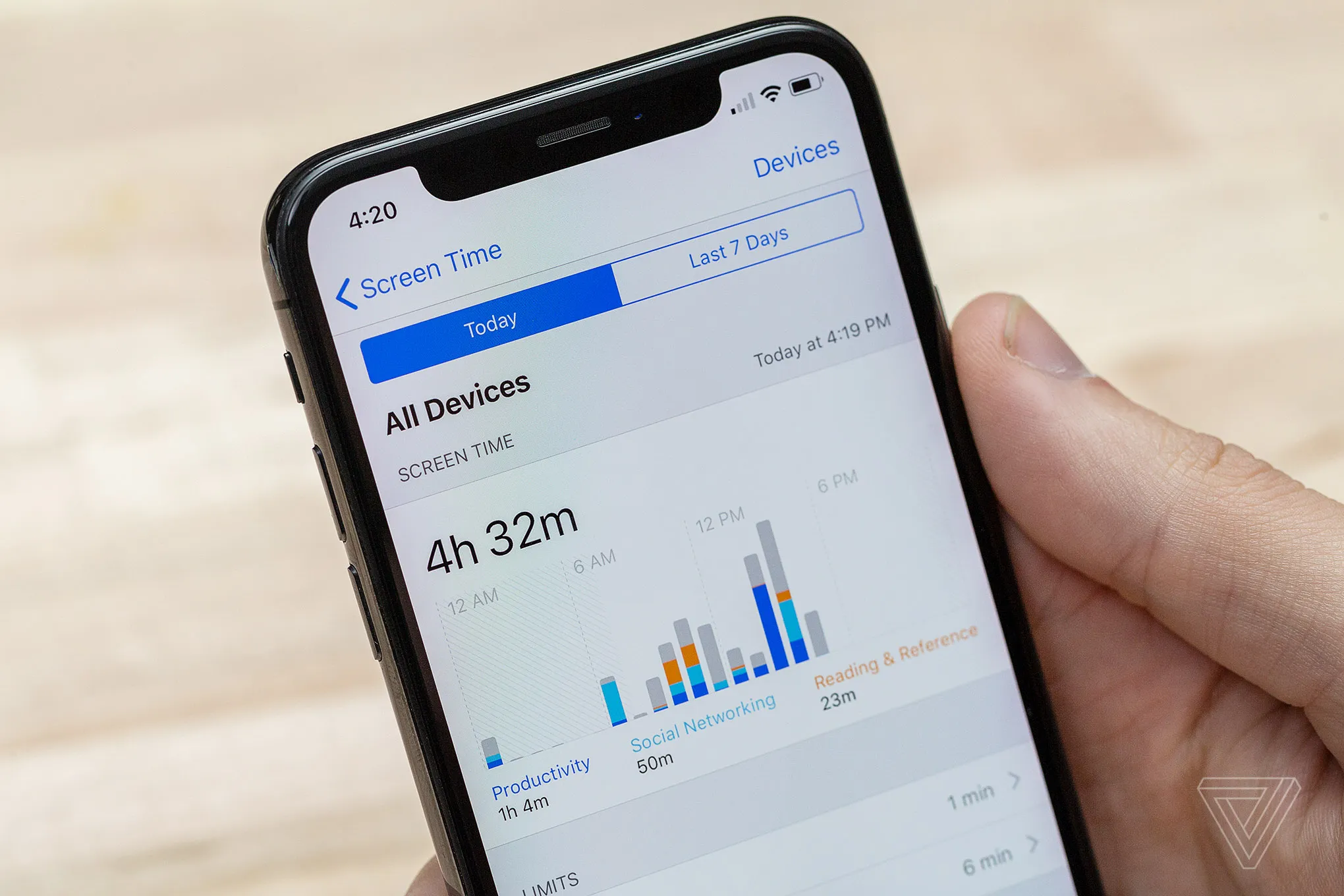
In today's digital age, children have unprecedented access to technology through smartphones, tablets and computers. There are positives in their use, such as educational and entertainment benefits. On the flipside children can be exposed to risks like inappropriate content, and online predators, as well as spending excessive amounts of time on their screens.
One of the ways to help you manage your child's digital activity, and help keep them safe, is to set up parental controls on their devices, such as Family Sharing, Family Link and Microsoft Family Safety.
Parental controls can offer:
- Content control - this restricts access to mature apps, games and websites.
- Screen time management - this allows you to set limits on device usage to encourage offline activities.
- Purchase approvals - this prevents unauthorised in-app or online purchases.
- Location tracking - this feature helps you keep tabs on your child's whereabouts for safety.
- Privacy protection - this limits social media interactions and data sharing. How to set up parental controls on different platforms
- Apple devices (ios/macos) - Family Sharing and Screen Time
- Step 1: Go to Settings > [your name] > Family Sharing > Add Family Member (invite your child via Apple id).
- Step 2: Enable Screen Time under settings to set app limits, downtime, and content restrictions.
- Step 3: Use Ask To Buy to approve app downloads and purchases.
- Step 4: Turn on Location Sharing via find my app for safety.
- Android/Google - Family Link
- Step 1: Download Google Family Link (parent app on your device, child app on theirs).
- Step 2: Link your child's Google account and set up supervision.
- Step 3: Manage app downloads, screen time limits, and bedtime schedules.
- Step 4: Filter websites and track location via Google Maps.
- Windows - Microsoft Family Safety
- Step 1: Sign in to Microsoft Family Safety with your account.
- Step 2: Add your child's Microsoft account and enable activity reporting.
- Step 3: Set screen time limits and block inappropriate content.
- Gaming consoles (Playstation/Xbox/Nintendo)
- Playstation: Enable Parental Controls in settings to restrict games by age rating.
- Xbox: Use the Xbox Family Settings app to manage playtime and purchases.
- Nintendo Switch: Set up a Nintendo Account for Kids with playtime limits.
When setting up parental controls, it's important to explain clearly to your child why you are putting restrictions in place. As your child gets older, and a level of trust is established, controls can be reviewed and adjusted accordingly.
Placing parental controls provides a good opportunity to encourage your child to spend more time with family, friends and taking part in offline hobbies and activities.
The Joey team strongly encourages parents and guardians to set up parental controls, along with the Joey app, as part of your measures to help keep your child safe online.
Joey was created to help parents and guardians safely navigate their child's online world. Learn more here.