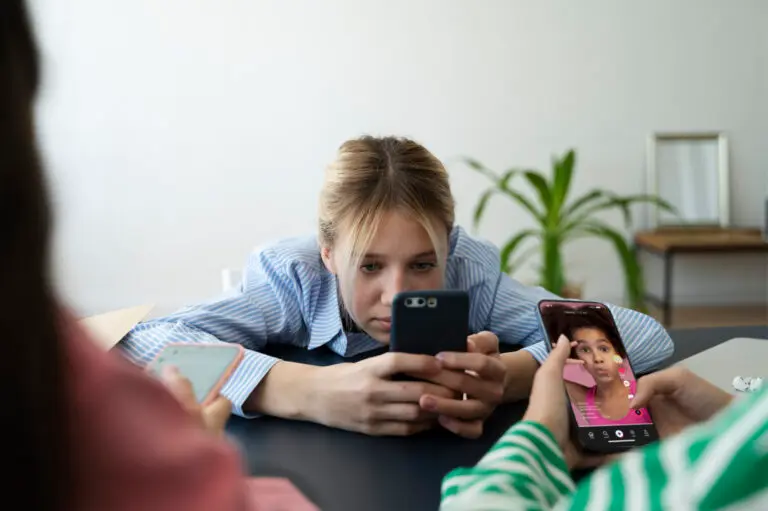
It is a well-known fact that some apps actively work to keep children from switching off their device. Challenges such as "streaks" and automatically starting up the next video can hook people into addictive behaviour. We all know this. We all want our kids out riding bikes through the neighborhood having a great time outdoors and not on their devices. We all see other people's kids who see like they are 'totally addicted'. 'That's not going to be my kid' is what we say to ourselves.
But how to make this happen? I found it both frustrating and alarming how difficult it was to set up effective screentime controls on my son's devices. Seriously Apple, you are so into claiming how good you are with privacy, but why make it so hard to set up screentime controls.
Lets talk about 'Downtime' limits on an iPhone. This is basically a schedule when your kid's device is available for them to use it. This should be the very first technology control you setup on their iPhone. In our house, we set 7:45PM to 7:30AM everyday. Apple allows you to have different times for weekends.
There are lots of studies that support why kids should have less screentime, we all know this. The challenge is setting up your Apple Family so you can set Downtime on your children's phones. It is fiddly, but you should totally persevere and get this going.
How to set up downtime limits
-
Use built-in device features
Most devices have parental controls to enforce screen time limits:- iOS (iPhone/iPad): Go to Settings -> Screen Time -> Downtime to block apps during set hours.
- Android: Use Digital Wellbeing & Parental Controls -> Bedtime Mode to disable apps at night.
- Windows/Mac: Set up Family Safety or Parental Controls to restrict usage.
-
Establish clear rules
- Set consistent "no-screen" times such as during meals, an hour before bed or on school nights.
- Create tech-free zones such as bedrooms and dining areas.
-
Lead by example
It's harder to enforce screen time rules when a child sees an adult constantly on a device. If adults follow screen time rules, kids are more likely to comply. -
Encourage offline activities
Provide engaging offline options like playing with friends, spending time outdoors, reading, playing board games or regular extracurricular activities. -
Use an app like Joey
Joey doesn't help setting Downtime limits. No use at all. Joey is great at spotting risks when your child is online. Layer 1 of protecting your child online is implementing a Downtime schedule. -
Most importantly, communicate and develop trust
Explain the reasons behind downtime limits and be open to discussion. As your child's age, responsibilities and trust grows, downtime limits can be adjusted accordingly.
By parents and guardians setting clear rules and providing alternative offline options, they can help young people to develop better and more balanced digital habits.
Joey was created to help parents and guardians safely navigate their child's online world. Learn more here.