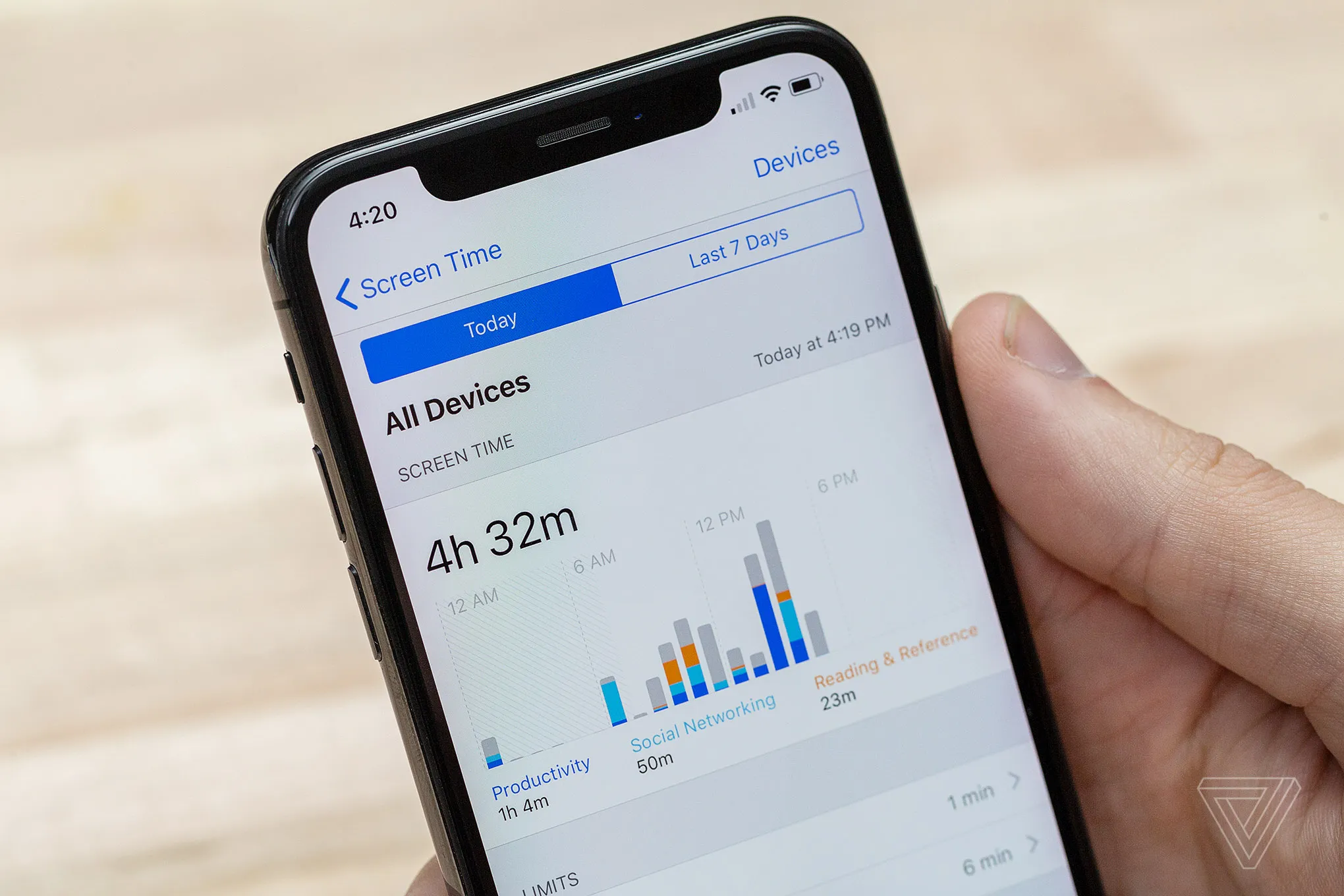
While we use Joey to monitor our son's online activity, we also lean on Apple's Screen Time settings to help manage his overall phone usage. We get this done in three easy steps, with insight into our thinking, what we've learned, and the two main settings we focus on to keep it simple.
Recently, a group of Grade 6 parents and I discussed the limits we've set up. Many parents leave usage unrestricted because Screen Time can feel fiddly to configure.
After sticking with it, we found that a little structure promotes healthier habits and sparks useful conversations. When Francis asks for extra time, it reminds us to talk about what he's doing online and how he wants to use his device. Those chats are the real foundation for how our family manages digital life.
What I mean about this is that from time to time, Francis will ask for additional screen time. It doesn't happen a lot, nor have we tried to implement the most clever screen time settings that cover all situations, but when he does ask for more screen time it is like a signal/reminder about what our screen time settings are.
And from this simple ask, we often fall into great chats about what's going on in his online world, device usage and what he is looking at tonight. These chats are really the foundation in our family for managing our devices and digital lives.
Step 1: Set up Family Sharing
This is the key. Many parents/guardians don't know about the Apple Family feature. So start here and create your family. Using Family Sharing lets you manage Screen Time settings remotely and ensures you have a complete overview of your child's digital habits. Here's how to get started:
- Open Settings, and click on your name.
- On your Apple ID, you will see a feature called Family Sharing.
- Follow the steps to creating your family... it's pretty straightforward. This will create an Apple ID for your child, if they don't have one already. And the wizard will take you through all these controls.
- Eventually when you finish this setup, you will see Family appear under your Apple ID in Settings, and you can review your Family Settings.
 Family Sharing lets you coordinate Screen Time from your own device.
Step 2: Downtime limits
Our first main limit is Downtime. It locks the device for everything except essential apps you choose, creating a regular "off-screen" period. As Francis starts high school, we're trying to get to bed earlierso we have Downtime kick in around 7:50 PM nightly.
- In Settings > Screen Time, tap Downtime
- Toggle Downtime on
- Set a start time (for example 7:50 PM) and an appropriate end time
 Downtime creates predictable device-free windows for rest and offline routines.
Step 3: App limits
In addition to Downtime, we set daily limits for social and messaging apps to help Francis manage his time online. We limit apps like Snapchat, iMessages and WhatsApp to 45 minutes per day.
- In Settings > Screen Time, tap App Limits.
- Tap Add Limit.
- Choose the Social Networking category or select individual apps if you prefer more control.
- Set the daily limit to 45 minutes and tap Add.
What happens after 45 minutes? Your child can request more time automatically from their device. You get a request on your device and you choose how much additional time to grant. It's a small secret that often I grant additional time on the condition that our son does some extra maths homework.
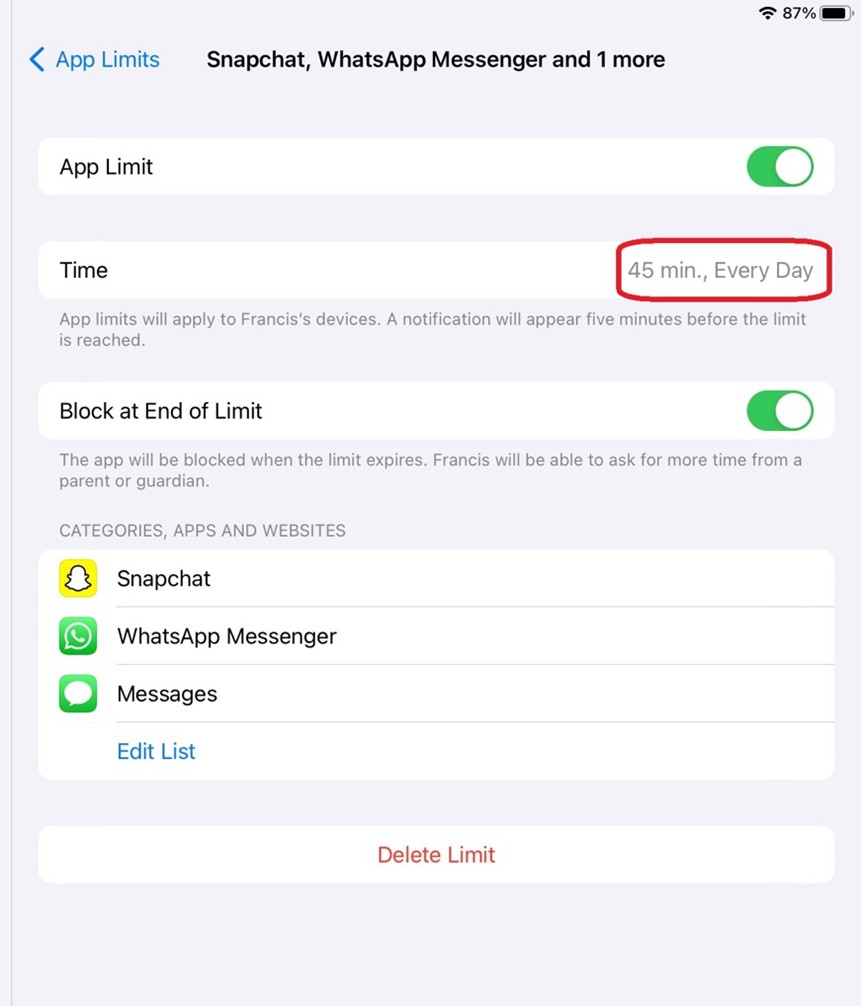 Per-app limits keep high-chatter categories from swallowing the day.
Ongoing: Monitor, review and adjust Occasionally, Francis will ask for extra screen time. I see these requests as an opportunity, a signal that sparks a conversation about his usage and whether adjustments might be needed.
- Review usage: Regularly check the Screen Time summary to see which apps are being used the most.
- Discuss openly: When your child asks for more time, discuss why they feel they need it. This can lead to important insights and help fine-tune the rules.
- Adjust as needed: The beauty of these settings is that they aren't set in stone. If the current limits aren't working, you can always revisit and adjust them.
Tips for managing screen time conversations
- Start with empathy: Explain why you're setting limits: not to punish, but to ensure balanced digital habits and healthy offline activities.
- Celebrate responsible use: Recognise when your child adheres to the limits and uses their time wisely.
- Be open to feedback: Sometimes, a request for extra time can indicate a need for more family discussion about how and why the device is being used.
In conclusion Setting up screen time limits on an iPhone might seem fiddly at first, but once you've gone through the process, it becomes a helpful tool in managing your child's digital life. For us, the combination of Joey and these native controls has been a game-changer-not only safeguarding Francis, but also opening up a regular dialogue about online habits and digital wellbeing.
Remember, every family is different. Adjust these settings to suit your child's needs and always keep the lines of communication open. If you have any questions or want to share your experiences, feel free to reach out.
Happy parenting and safe scrolling!
Common challenges and solutions
"Everyone else gets unlimited time" This is totally untrue, numerous kids try run this argurment on their parents
Resistance and arguments I say this is the limit, see how you go, come ask me if you need more time, I will usually say yes.
Technical workarounds use parental-control software for additional security.
Different rules for different apps customise limits based on the app's purpose and risk level.