The ultimate parental-controls setup checklist, that real parents will actually do
Who this is for: Parents handing a first iPhone, or shared family devices, to a 9-14 year old and wanting a simple setup that balances limits with coaching.
Step 1: Start with your Ground Rules
Before any settings, have a short, clear family chat. Keep it human and simple.
What phones are for: safety, logistics, staying in touch with family and real friends
Device-free zones and times: dinner, bedrooms at night
How to ask for more time: give a reason, agree a finish time
What to do when something feels off online: screenshot, tell us, step back
Use our template if it helps: Read: /articles/10/ground-rules-the-digital-rules-we-set-in-our-family
Tip: write 5-7 rules and stick them inside a kitchen cupboard. Refer to that, not your mood.
Step 2: Turn on the built-ins iPhone and iPad
-
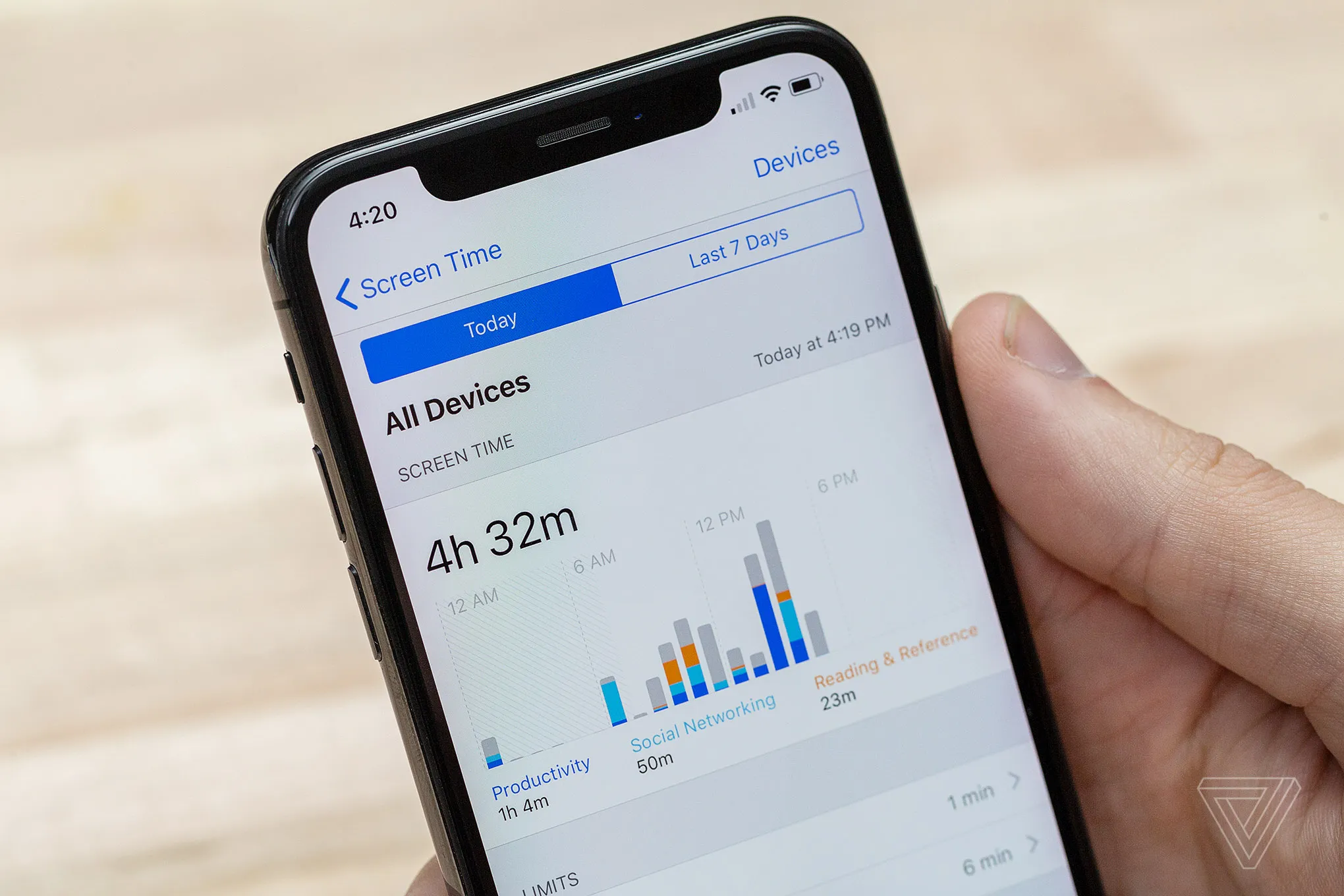
Family Sharing, then Screen Time for your child
-
Downtime, for example 7:45 pm to 7:30 am
-
App Limits, small bucket for messaging and social, separate bucket for games and video
-
Content and Privacy, age ratings, web limits, install and purchase approvals
-
Optional: Communication Safety, blur explicit images and show warnings
Screen Time is fiddly, it is worth the 20-30 minutes once.
Android, if you have any at home
-
Google Family Link, supervised account, app approvals, time limits, Play Store ratings
-
SafeSearch on, YouTube Restricted Mode on
Chromebooks or Windows, if used
-
Google Family Link on Chromebooks, Microsoft Family Safety on Windows
-
Managed accounts, enforce SafeSearch and YouTube restrictions
Consoles and TVs
-Xbox, PlayStation, Switch: set time, ratings, and friends-only chat
-Streaming apps: lock profiles by age, PIN the adult profile
Step 3: A couple of network basics
-
DNS filtering: CleanBrowsing or OpenDNS FamilyShield, a quick web baseline on every device
-
Guest Wi-Fi for visiting devices, keeps your settings clean
Step 4: Add coaching signal with Joey
Parental controls limit access, they do not tell you what happened in chats. Coaching tools help you talk early.
What Joey does today:
Looks at messaging and search history on iPhones
Flags bullying patterns, risky or new contacts to use with Contact Verification, money or gift asks, oversharing of personal info, and useful tone changes for a check-in
Useful pages:
iMessage monitoring for parents -> /features/iphone-monitoring
Bullying detection alerts -> /features/smart-alerts/bullying-harassment
Contact verification -> /features/contact-verification
How's My Child report -> /features/hows-my-child-report
Reminder: Joey is not Screen Time and not spyware. It gives you alerts so you can talk. You do not need to read every message.
Step 5: A tiny weekly routine
Open Joey together for five minutes on Sunday
<!-- Joey Desktop addition -->Set a reminder to run Joey Desktop once a week. After the first wired sync it only takes a couple of minutes and keeps alerts tied to the latest chats and contacts.
Look at any alerts worth a chat
Use Contact Verification to label new names, for example "Coach Jenna, Netball"
If a group chat is messy, practise an exit line: "Not cool. I am out"
If everything looks fine, high five and move on
Step 6: Sit down with your child periodically
This is more practical than a maintenance plan. Joey will prompt the right conversations.
When an alert arrives, sit down together and walk through it
Use the How's My Child report to check how things are trending, ask "How is your week going, really"
Revisit Ground Rules if something has changed, school term, sports season, friend group
Celebrate positives, kind language, supportive friends, leaving a bad chat, then agree one small improvement if needed
<!-- Joey Desktop addition -->Controls are only half the story. Joey's Smart Alerts pair with this checklist to warn you about bullying, scams, and personal info leaks between syncs so you can coach early.
That is it. No tickets, no follow-up workflows, no task automation.
When I step in as a parent
My child leaves a group and is added back again
Threats, sharing embarrassing images, or dog-piling
Sleep, school, or mood takes a clear hit
I save a couple of screenshots, keep my tone calm, and loop in a trusted school adult if needed.
Quick compare Layer Great for Not for Ground Rules Trust, expectations, asking for help Blocking apps Screen Time or Family Link Time limits, ratings, approvals Reading the room in chats DNS filter Toning down the web for all devices Friends being unkind Joey on iPhone Timely alerts about risks and relationships Locking a device or spying
FAQs
Do I still need Screen Time if I use Joey Yes. Screen Time gives limits, Joey gives signals. Different jobs, both useful.
Will Joey read all messages No. Joey processes iMessage data and surfaces alerts after the next backup. You decide when to talk and what to review together.
Does Joey work on Android No. Joey supports iPhone for now.
Do I need the DNS filter step Optional. It is a quick win if you want a baseline for every device, including visitors.
What if my child finds a workaround Treat it as a coaching moment. Tighten what matters, revisit the rules, keep the Sunday check-in.