Our guide to all the tech and apps we use in our Family for eSafety and digital well-being
We use a layered approach to online safety in our family. What is a 'layered approach'? This Article goes into the different methods and tech we use to create a simple layered approach to safety where each piece of tech (app/software) is optimised for its intended purpose, and they all work well together. And importantly, most of this is low hanging fruit that is easy to implement, I bet you are using many of these apps already.
It is a big moment handing your child their first iPhone. The kids are very excited. You are happy seeing them happy, but I bet you and your partner are fairly anxious wondering what risks you are exposing your child to. Our job as parents is to keep our kids safe. And how exactly does one do this with complicated iPhones?? It is daunting.
Not to worry, we have this problem covered. From our experience, we want to share what is working well for us, why we think so, and what we don't recommend. We really hope this is helpful for you.
The goal is not to police every element of your child's iPhone, it is to build a layered plan that pairs Apple's safeguards with proactive conversations and insights so your child can explore confidently. This article explains the layered safety stack we use in our family to promote healthy habits, and keep trust at the centre of your relationship.
For the exact iPhone setup steps, follow our complete iPhone Safety Guide How to Secure Your Child's iPhone.
The Layers
I put this overview together as layers of solutions from the base up. We start with Layer 0.
Layer 0, or the Ground Rules as we call them.
0 is where it all starts. This is a set of rules your family creates about online safety, device usage, screen time, and the expectations we all have about behaviours and safety.
- The Ground Rules provide the context each child needs, so they understand why each 'ground rule' is important.
- This isn't about locking your kids down, it is the way they build trust
If you want to see the exact Ground Rules we have implemented in our family you can read them here: Callaghan family Ground Rules for device usage, eSafety, parental controls
- Layer 1 is our first layer of tech for how parent's can secure their child's iPhone. Use Apple's built-in safeguards: Family Sharing feature. The Apple Family links your family and devices together and it is where Parental Controls are set.
- Apple enables parents to set up and manage parental controls for their children's Apple devices using Screen Time, Downtime, and Application limits, including enforcing children to request approval for new app's they want, and purchases
- This is a must have. It is a bit fiddly to start with. If you need help, check out my guide to how we set-up Francis's iPhone and iPad for parental controls, and screentime controls. Our guide has photos of all the menu screens you need to go through and the specific rules we put in, and our thinking why: the Apple parental controls we recommend for kids with their first iPhones for the best security settings.
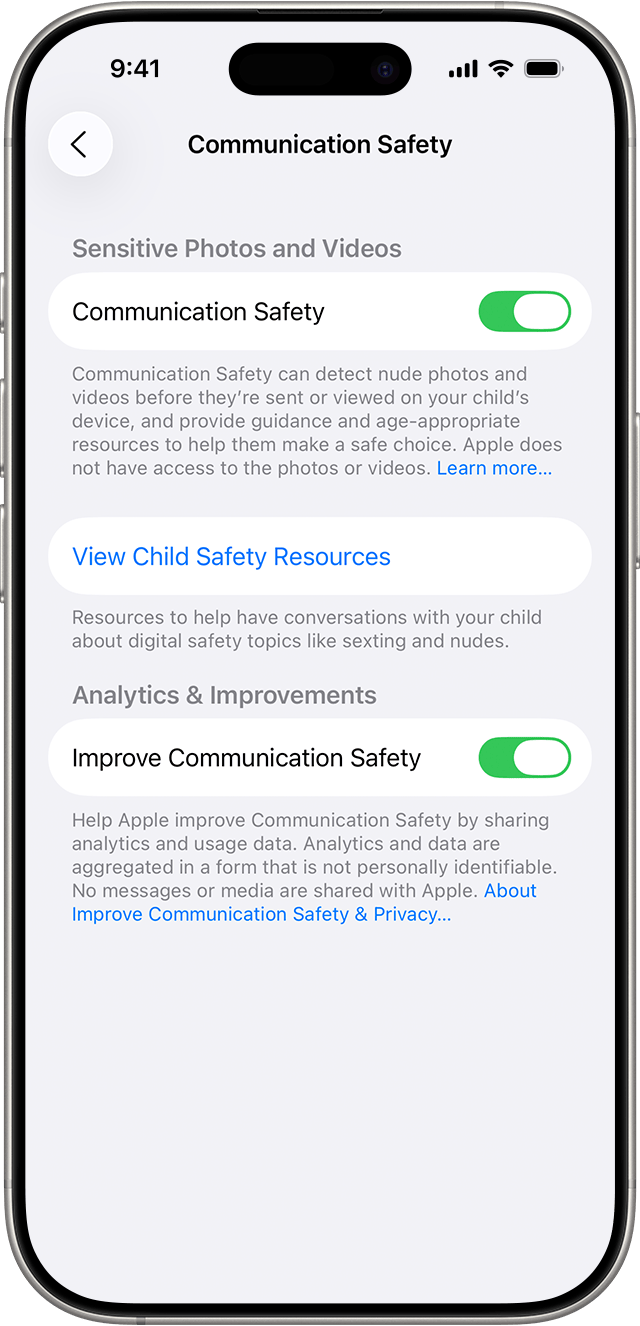
- Layer 2: Activate Sensitive Content Warnings and Communication Safety
iOS 17 introduced on-device nudity detection in Messages and AirDrop. What this means is that if your child receives or attemptes to send photos or videos that might contain nudity, this feature warns them.
Definitely turn this on and combine with Apple's Message Safety prompts for unknown contacts to reduce exposure to strangers.
- Content & Privacy Restrictions In this 3rd Layer, we adults can control what our kids can do with their iPhones. With Family Sharing, we can set the following parental controls for members in the Family Sharing group:
-
Set restrictions for installing and deleting apps and in-app purchases.
-
Allow your child to access only age-appropriate apps.
-
Review your child’s requests to purchase and download apps with Turn on Ask to Buy.
You can set age-appropriate ratings, disable explicit music, and block web content categories you do not want them to access.
- Location tracking This is Layer 4 for us. This solution helps us stay connected and know where we are. It is probably more a logistics tool than anything else. Francis knows where I am, or more usually where I parked to pick him up from School. It any of us are running late, we can see where the others are. If we are at work, Lisa and I get an alert to say Francis has left school, and Francis has arrive home. I know if sounds quite simple, but it removes one area of worry. Now that Francis is older and has earned more freedom, this feature provides a bit of comfort when he is out with his friends.
- Apple's Find Devices is really only good if misplace your Apple device. Try using this to see if your young child is riding their bike home safely. Its totally not that great. But 'It is FREE!!' you say. So is Life360 and its x100 better.
- We use Life360 for keeping the whole family updated on our location. This might surprise you, but your kids want to know where you are too. This app works really well, and is free.
- Social media and messaging alerts
Apple's toolkit is a good starting point. Parents often stop here with screentime controls and disallowing certain apps. But grooming, bullying, and mental health concerns happen when our kids are online, with seemmingly innocent apps we do allow like Apple iMessages or WhatsApp. Some of these risks emerge in subtle language cues that automated filters miss. Joey fills that gap with safety-pattern checks that watch for changes in sentiment, risky keywords, and suspicious contact patterns without you combing through every conversation.
Joey's safety checks listen for patterns that require action. We have 7 Smart Alerts to extend Apple's guardrails
What Smart Alerts Detect
Safety signals parents can act on
Joey provides automated insights across seven priority areas of online safety and well-being.

Suspicious contacts
Flags unknown numbers, sudden contact churn, and outreach patterns that don't feel safe.
Bullying & harassment
Surfaces repeated put-downs, intimidation, or language meant to isolate your child.

Detect hate speech, slurs and profanity in iMessage
Detects escalating language, slurs, or harmful rhetoric that signals conversations are off track.

Emotional distress
Looks for signals of anxiety, withdrawal, or self-harm language so parents can check in early.

Money & gifts
Highlights payment requests, gift-card pressure, and money drops mixed with urgency cues.

Detect your child sharing personal information (PII)
Warns when kids are asked to share addresses, passwords, location, or contact details.

Drugs & alcohol
Catches references to substance use, supply offers, or planning that needs adult guidance.
Each alert card links directly to resources inside the Smart Alerts feature page so you understand what triggered the flag and what to do next.
Monitor messaging without eroding trust
Safety and privacy can coexist. Your child still needs space to grow. The balance comes from being explicit about what you monitor, why you do it, and how Joey helps you focus on true risks instead of micromanaging every message.
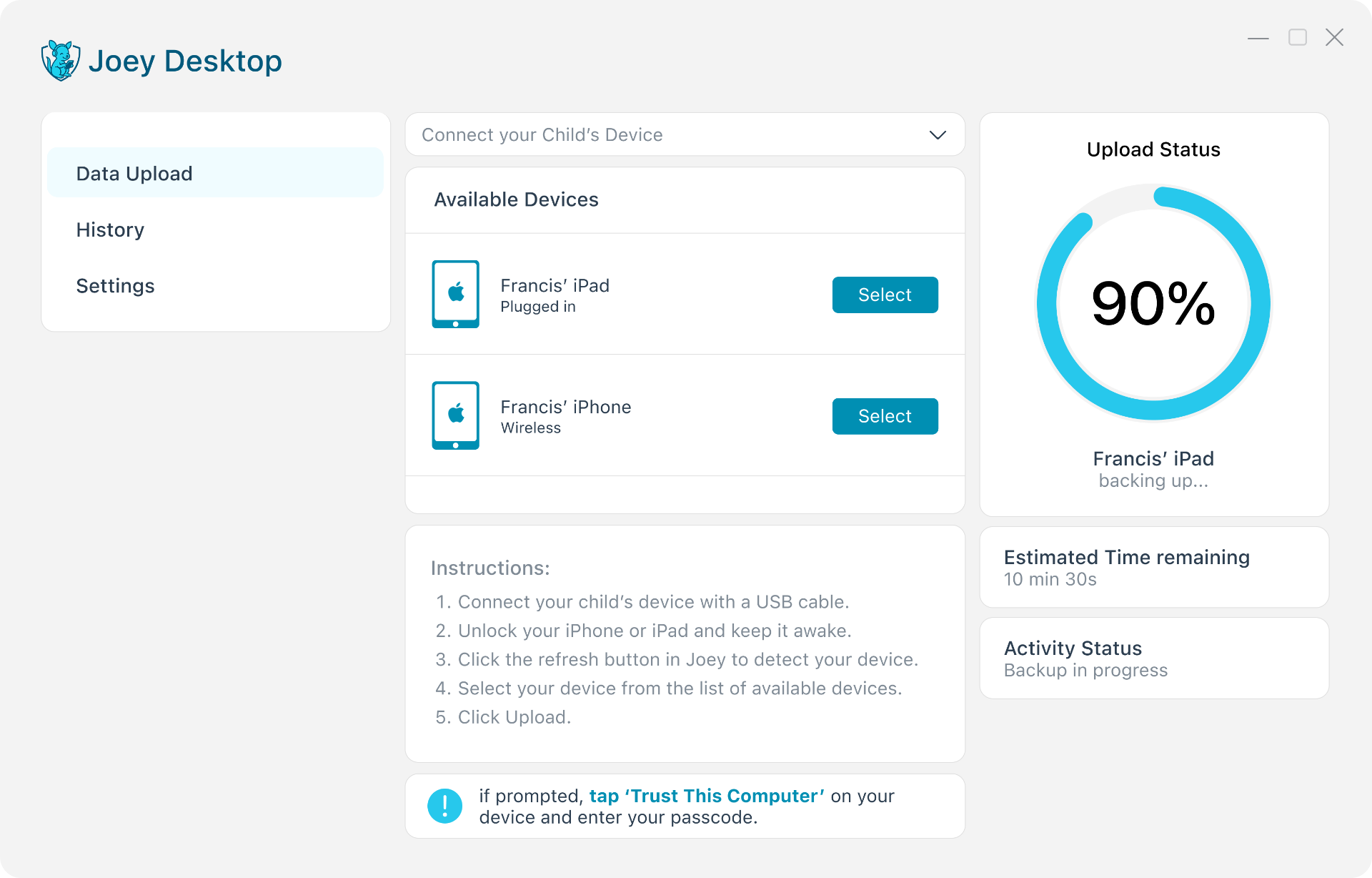
Beyond Apple's built-in Screen Time settings, we run Joey Desktop on our family laptop once a week. It creates an encrypted iTunes backup focusing on iMessages, and then Joey's core feature, Smart Alerts, flag safety patterns across 7 primary categories of risk.
How it works
Think of Joey Desktop as the family-controlled hub. It turns a secure iPhone backup into the data Joey needs - nothing more, nothing less.
Explore iPhone MonitoringConnect Once
Plug in your child's iPhone, sign in with your parent account, and choose whether you want encrypted or standard backups.
Run on Background
The agent captures the latest message history, contacts changes, and search signals. Parents can pause or delete any backup.
See Insights
Smart Alerts, Risky Contacts (Stranger Danger), analytics, and the How's My Child? report refresh after each sync-ready for your next conversation.
Teach kids to self-manage risk
Technology alone cannot deliver safety. Teaching your child to recognise red flags and ask for help is what keeps them secure in their online neighborhoods. This is core to our parenting philosophy.
Coach them on red-flag scenarios
For lack of better words, I think you need to play situations out like this, role play them. I ask Francis, how would you respond if:
- A new contact asks for personal details or photos
- A friend pressures them to hide a conversation
- Someone suggests meeting up without parents
- They feel uncomfortable but are not sure why
- or the classic, 'Promise you won't tell you parent/friend ok...'
Make it clear they will never be in trouble for telling you about a risky chat. Reinforce that Joey is there to back them up if they freeze in the moment.
Joey's How's My Child report highlights sentiment trends you can share in these conversations so they see the payoff of good digital habits.
Frequently asked questions
Can I monitor iMessage without reading every text?
Yes. Joey Desktop syncs your child's iPhone through Apple's backup process and Joey summarises safety signals (bullying, risky contacts, oversharing) so you can talk without snooping.
How do Joey alerts differ from Apple notifications?
Apple alerts focus on device usage-time limits, unknown contacts, and purchase approvals. Joey Smart Alerts combine sentiment analysis, trust scoring, and contextual coaching so you know why a conversation was risky and what to do next.
Should I tell my child when an alert fires?
Always. Transparency keeps trust intact. Explain what the alert detected and invite them to share their perspective. The conversation is as important as the technology.
Keep the conversation going
Keeping your child safe on an iPhone is ongoing. Apple delivers sturdy guardrails, Joey fills the insight gaps, and your family values guide the conversations in between. With layered protection and open dialogue, your child can thrive online while you enjoy peace of mind.