Guide
How to Secure Your Child's iPhone
Most iPhones are set up for convenience, not kid-safety. For a 9-15 year old, that can mean more access than you intended - addictive features, easier contact with strangers, and content you didn't choose.
Parents want their kids to get the benefits of technology without the risks that keep you up at night. This guide gives you a clear, practical setup: the iPhone settings that matter most (Screen Time, Communication Safety, downtime, and app/web limits), plus when it makes sense to add monitoring signals so you can step in early - without turning parenting into spying.
A quick reality check
Updated 4 March 2026 · Grant Callaghan
Safety Setup
The iPhone safety checklist
Use this to get the essentials set.
- 1Create your Apple Family (parent-only)
- 2Turn on Downtime (bedtime + school hours)
- 3Set App Limits for social + games (disallow unwanted apps
- 4Review Always Allowed (apps that remain always accessible)
- 5Lock Content & Privacy Restrictions (installs, purchases, explicit content)
- 6Configure Communication Limits (who they can contact and when)
- 7Turn on Messages -> Filter Unknown Senders
- 8Review Location Services + app permissions (Contacts/Photos/Microphone)
- 9Agree on family rules (your families ground rules for device use)
- 10Decide if you want Smart Alerts for bullying, money pressure, risky contacts, and oversharing signals Screen Time won't catch
Menus can vary slightly by iOS version. If you cannot find a setting, use Search in the Settings app.
Guide Map
Table of contents
Jump to the section you need right now.
Screen Time basics
Screen Time is Apple's built-in parental controls layer. It sets schedules, limits, and permissions, but it only works well when the passcode stays parent-only.
Step 1: Set up Family Sharing
This is the key. Many parents and guardians do not know about the Apple Family feature, so start here and create your family. Using Family Sharing lets you manage Screen Time settings remotely and ensures you have a complete overview of your child's digital habits. Here's how to get started:
- Open Settings, and click on your name.
- On your Apple ID, you will see a feature called Family Sharing.
- Follow the steps to creating your family... it's pretty straightforward. This will create an Apple ID for your child, if they don't have one already. And the wizard will take you through all these controls.
- Eventually when you finish this setup, you will see Family appear under your Apple ID in Settings, and you can review your Family Settings.
Family Sharing lets you coordinate Screen Time from your own device.

Step 2 - Downtime (bedtime and school hours)
Our first main limit is Downtime. It locks the device for everything except essential apps you choose, creating a regular "off-screen" period. As Francis starts high school, we're trying to get to bed earlier so we have Downtime kick in around 7:50 PM nightly.
- In Settings > Screen Time, tap Downtime.
- Toggle Downtime on.
- Set a start time (for example 7:50 PM) and an appropriate end time.
Downtime creates predictable device-free windows for rest and offline routines.

Step 3 - App Limits (reduce impulse use)
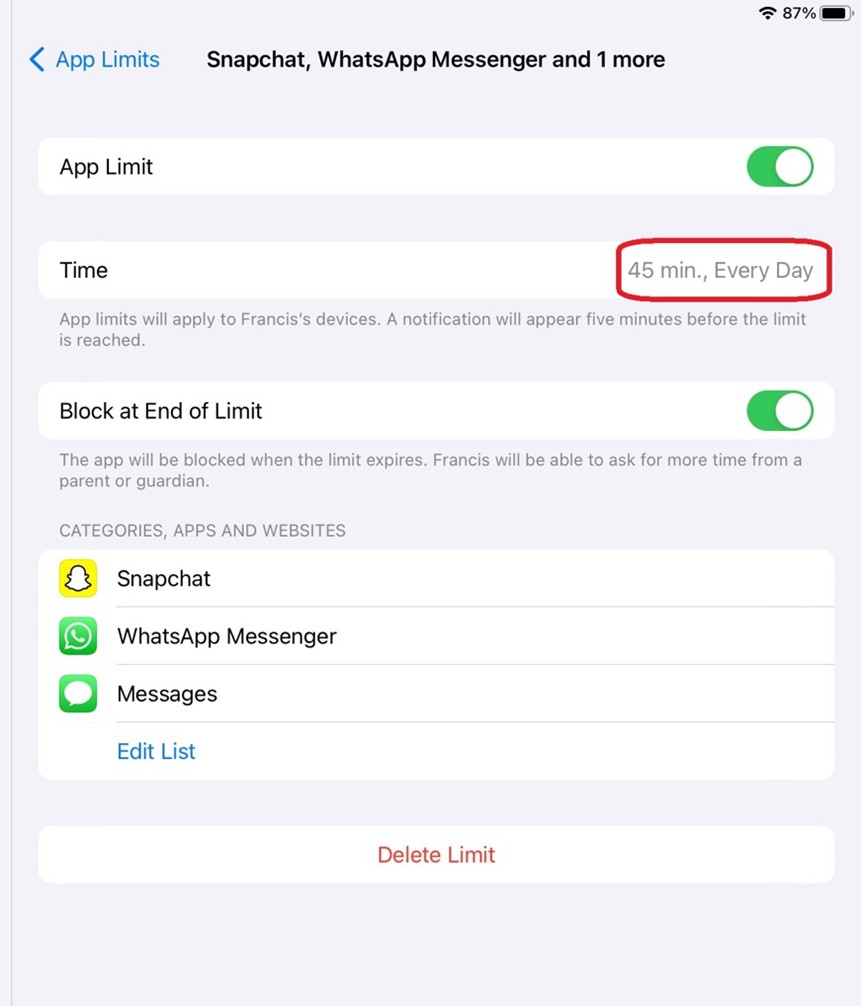
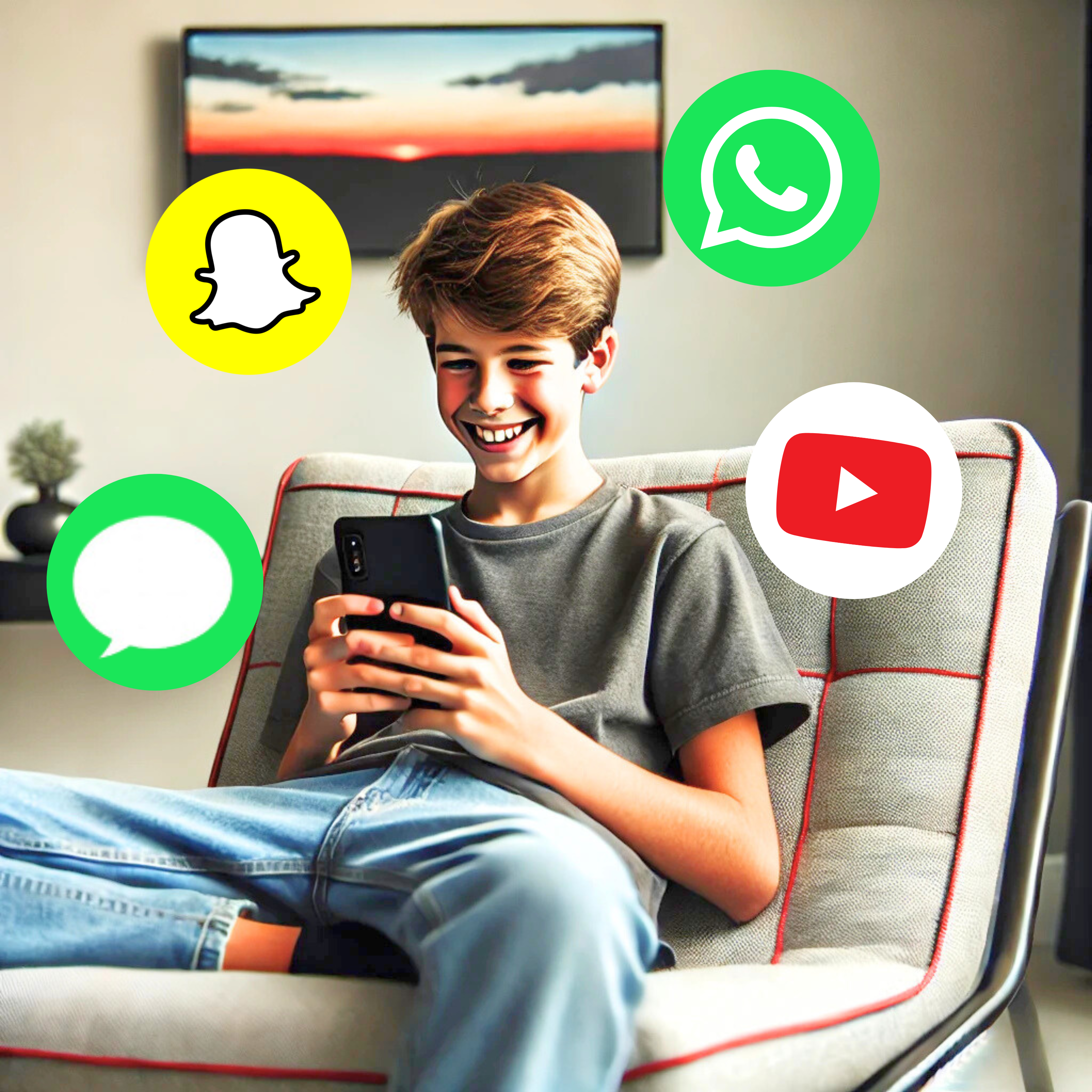
In addition to Downtime, we set daily limits for social and messaging apps to help Francis manage his time online. We limit apps like Snapchat, iMessages and WhatsApp to 45 minutes per day.
- In Settings > Screen Time, tap App Limits.
- Tap Add Limit.
- Choose the Social Networking category or select individual apps if you prefer more control.
- Set the daily limit to 45 minutes and tap Add.
What happens after 45 minutes? Your child can request more time automatically from their device. You get a request on your device and you choose how much additional time to grant. It's a small secret that often I grant additional time on the condition that our son does some extra maths homework.
Per-app limits keep high-chatter categories from swallowing the day
Step 4 - Always Allowed (keep essentials only)
You might want some apps to be allowed all the time. Use Always Allowed settings in Screen Time to choose what communication is allowed during downtime, and which apps can be used during downtime or after an applicable time limit has been reached.
For example, you may want that "During Downtime, Allow communication with...." and you choose say Dad and Mum. You can also allow certain apps. For us we allow quite a lot of apps but these are school related study and research apps. Currently Duo Lingo is getting lots of minutes... those Duo Lingo streaks are highly motivating :-) And Francis is getting A's in French, so ok!!
Common Screen Time mistakes
- Not discussing with your child the downtime and app limits you are putting in place, and why.
- Trying to perfect settings on day 1.
- Letting your kid know the parent passcode.
- Not reviewing the controls periodically and making adjustments.
- Not asking what your child is doing online and how much time they really need.
Daaaaad, I NEED more screentime, please.
Does this sound familiar to you? You are in the middle of making dinner, a puppy is getting in your way, you are mentally writing an email, and your kid goes: "Daaaaaad. I NEED more screentime." I love that "need" to them is in all caps on a verge of total emergency if they run out of screentime. Occasionally, Francis will ask for extra screen time. I love when this happens. This is a great time to ask what he is working on, what he needs more time for, is this really the best use of his time.
Dad: "Should you really be watching another Kobe video if you haven't finished your math homework?"
Francis: "Dad, it's not due for 2 more days and I already did most of it!"
These conversations also become good opportunities to see if maybe as he gets older, is more screentime appropriate and we can tweak the settings in the Apple Family account.
Adjust as needed: The beauty of these settings is that they aren't set in stone. If the current limits aren't working, you can always revisit and adjust them.
Communication safety
Communication controls help you decide who they can talk to and when, without reading every message.
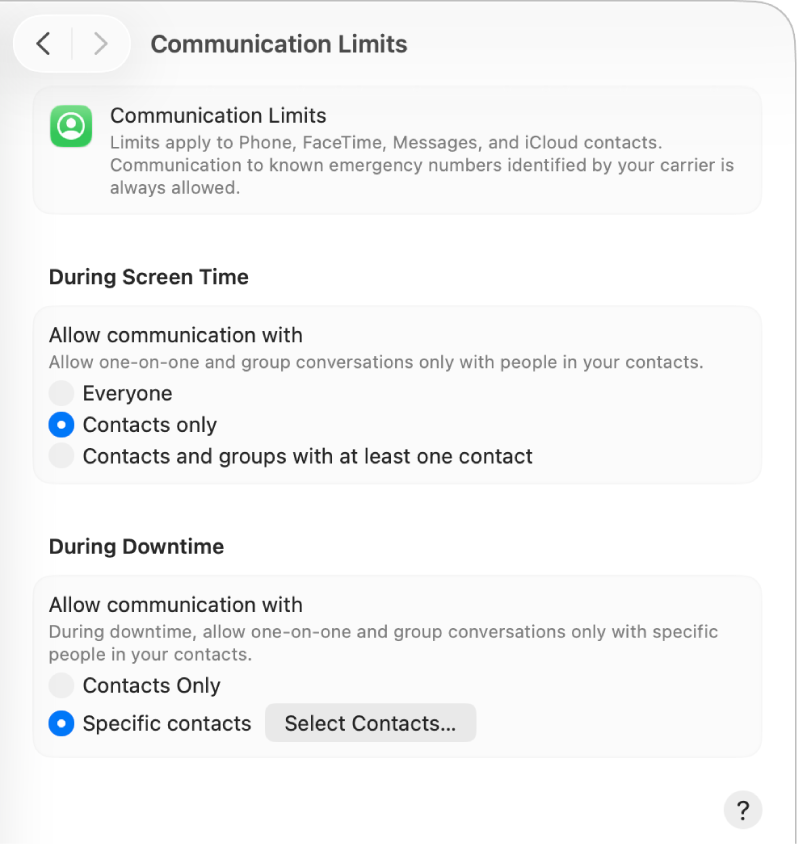
Communication Limits (who they can talk to and when)
- Open Settings -> Screen Time -> Communication Limits.
- Set limits for During Downtime and During Screen Time.
- Start with Contacts Only for younger kids during downtime.
- Allow more freedom during daytime for older kids, then tighten as needed.
Content & Privacy Restrictions (a few more good settings to include)
If you only tighten a few screws, make it these. They're the ones that prevent the classic kid workaround: download something risky, hide it, delete it, deny it.
- App installs & deletes - lock this down at the start so you don't get surprise apps appearing (and disappearing).
- In-app purchases & downloads - because accidental spending and "free trials" are basically designed to happen.
- Explicit content filters - imperfect, but it stops the worst stuff showing up by default.
- Web content restrictions - even a light filter reduces the random corners of the internet they stumble into.
If you want to be generous later, you can loosen these one-by-one. But at the beginning, this block is a big part of what makes the whole setup actually hold.
The approach we took with our son
Unknown senders
Strangers can message your child's number just like they can email them. Most "unknown sender" texts are harmless spam, but some are the opening move for impersonation, phishing links, or coercive pressure conversations.
We don't need our kids to become detectives. We need one simple rule and a phone setting that buys them time.
How big a deal is this?
- Spam and impersonation texts are a common way scammers try to steal personal or financial info, often by pushing links ("delivery problem", "suspicious activity", "invoice") or trying to get logins and passwords.
- Online enticement and sextortion reports have surged. NCMEC reports 186,819 online enticement reports in 2023 and 456,276 in 2024 (as of Oct 5, 2024). Source
- In financial sextortion patterns, blackmailers often push for sexual content quickly. NCMEC notes this can happen almost immediately after contact. Source
- If something does go wrong, the guidance is consistent: stop contact, block/report, preserve evidence, and report (don't negotiate with the offender). Guidance
Turn on Filter Unknown Senders (iPhone)
This doesn't block messages. The setting routes unknown numbers into a separate list and stops notifications, so your child isn't ambushed by random texts during the day.
- Open Settings -> Messages.
- Turn on Filter Unknown Senders.
House rule
"If it's from a number you don't know, don't reply, don't tap links, and come show me. We'll work this out together and sharpen our scam-detection radar."
Why this rule works:
- Many scam texts try to get you to click a link or hand over personal info.
- Fraudsters can appear as a seemingly known contact using a "new" number to fool kids into trusting an unknown contact.
- In coercion scenarios, time and adult help are the safety advantage, not smart comebacks.
Red flags
Treat the message as unsafe if it includes any of these:
- Urgency and threat: "today", "final notice", "account locked", "you'll be in trouble".
- A link you weren't expecting (especially delivery/billing/invoice themes).
- Requests for secrecy: "don't tell your parents".
- Requests for personal info: passwords, codes, address, school, photos.
- Any sexual content/pressure or sudden intimacy from a stranger.
- Money pressure (gift cards, transfers, "help me out").
What to say to your child (better script)
Instead of a generic line, give them something calm, specific, and repeatable:
"If a stranger messages you, you are never in trouble for telling me.
Don't reply. Screenshot it. Bring it to me, even if it feels awkward or scary.
My job is to help you handle it."
Or more simply:
"We don't answer unknown numbers. Show me the message. Done."
Or for older kids who worry about embarrassment:
"You won't lose your phone for telling me. You will get help faster."
Red-flag messages
Kid's chats can get messy. They swear. They overreact. They say dumb stuff. If you try to police every spicy message, you'll burn out — and your kid will stop working with you.
What I actually care about is pattern + pressure. Most concerning situations begin weeks or months back, starting innocuously, and then the pattern builds. This is why we built Joey to look for patterns over time, not just one message at a time.
And it doesn't matter whether it happens on iMessage, Snap, WhatsApp, or anything else. The platform changes. The pattern doesn't.
The red alert patterns (quick list)
- Threats + intimidation (violence, doxxing, "k*** yourself" language)
- Sexual pressure / image coercion ("send a pic", "don't tell anyone", threats to share)
- Secrecy + isolation ("don't tell your parents", "no one likes you", pile-ons)
- Hate and identity attacks (racist/homophobic dehumanising language)
- Passwords / account access (passwords, verification codes, "log in for a sec")
- Money pressure ("send money", "easy money", "you'll be rewarded")
- Drugs / selling ("open for business", pricing, supply language)
What I would say to my child
"If someone is pressuring you, threatening you, or asking for photos/passwords/money — you don't have to handle that alone. Screenshot it, tell me, and we'll deal with it together. You won't get in trouble for asking for help."
Want real examples and how these situations build over time? Read:
What Screen Time can't catch
Screen Time controls time and access. Parental Controls are great at controlling access. But when your kids actually have Screentime, on the apps you permit, what happens then? We allowed Facebook Messenger at first. And Whatsapp for communicating with grandparents overseas. Then Apple iMessages and Facetime. When Francis was 13, we were debating Snapchat. What we wanted to know was how he was doing when he was online? Was he happy? Did we have to worry about bullies? Was he lonely? Were any strangers contacting him? And, what was our son actually doing with the time he was permitted? Was he looking at anything concerning? Parental controls are not tools to alerts us to risk patterns inside conversations or changes in contact behavior. We want early warning signals that we can turn into great conversations that help guide our kids.
- Bullying or harassment patterns.
- Money pressure or scam-style requests.
- Oversharing of personal information.
- Rapid escalation with a new contact.
When to add Smart Alerts
Screen Time is great for limits and restrictions. It's not designed to spot risk patterns inside conversations - like bullying, money pressure, or risky contact behavior. That's where Smart Alerts can help: signals you can act on, without trawling every message.
- Bullying / harassment signals.
- Risky or unknown contact patterns.
- Money pressure / scams.
- Oversharing / personal info risk.
- Escalation patterns worth a check-in.
Next steps
Setup done? Start with these three parent-tested follow-up reads.

Ground rules: The digital rules we set in our family
A clear set of digital ground rules that keeps expectations simple and enforceable.
A layered iPhone safety plan for parents (step-by-step)
The layered approach we use to pair Screen Time with early warning signals.
Unknown numbers & 'new friend' texts on iMessage: what to teach your child
Coaching scripts and simple rules for dealing with unknown contacts calmly and safely.
Frequently asked questions
- What age should I start Screen Time on my child's iPhone?
- As soon as a child gets their own iPhone. Screen Time is the base layer for routines, limits, and permissions, and it is easier to start early than to add restrictions later.
- Can my child bypass Screen Time?
- Kids can sometimes bypass settings if the passcode is shared or if rules are inconsistent. Keep the passcode parent-only and review settings together every few weeks.
- Does Screen Time show message content?
- No. Screen Time controls access and time limits. It does not surface patterns inside message content or new contact behavior.
- Should I use Family Sharing for Screen Time?
- Yes if it is available. Family Sharing makes it easier to manage Screen Time settings and prevents passcode confusion.
- What does Filter Unknown Senders do?
- It separates messages from unknown numbers into a different list and silences notifications from those senders by default.
- Do Smart Alerts read every message?
- No. Joey surfaces safety signals so you can act on patterns without reading every message.